
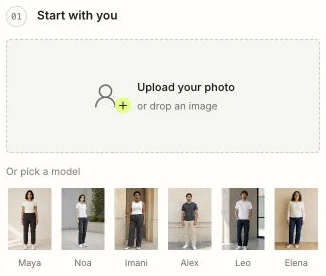
Add a person photo
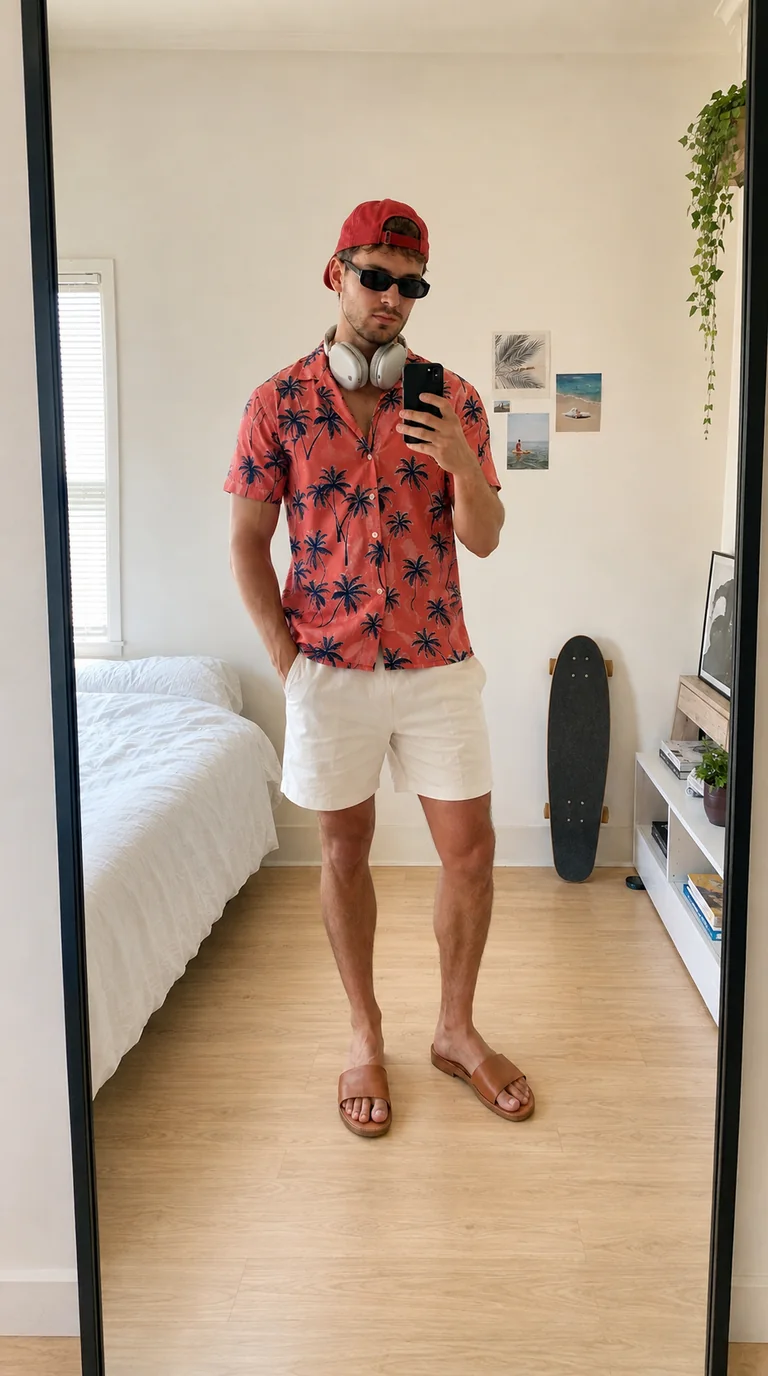
For virtual try on, upload a well-lit, front-facing photo of one person or choose one of the six sample models. Include the full body when trying a complete outfit or shoes.
Virtual try on puts a complete outfit on your photo. Pick a look, mix pieces, and compare the picture — no prompt to write.
Recent try-ons from this visit
WHAT YOU GET
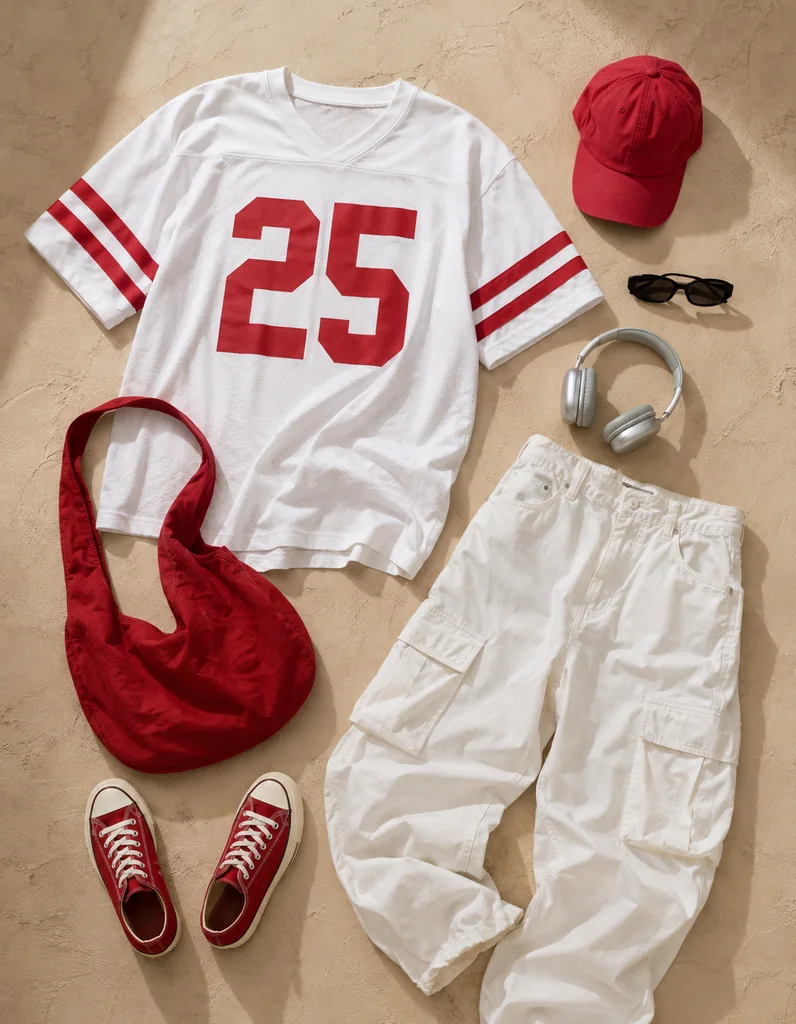
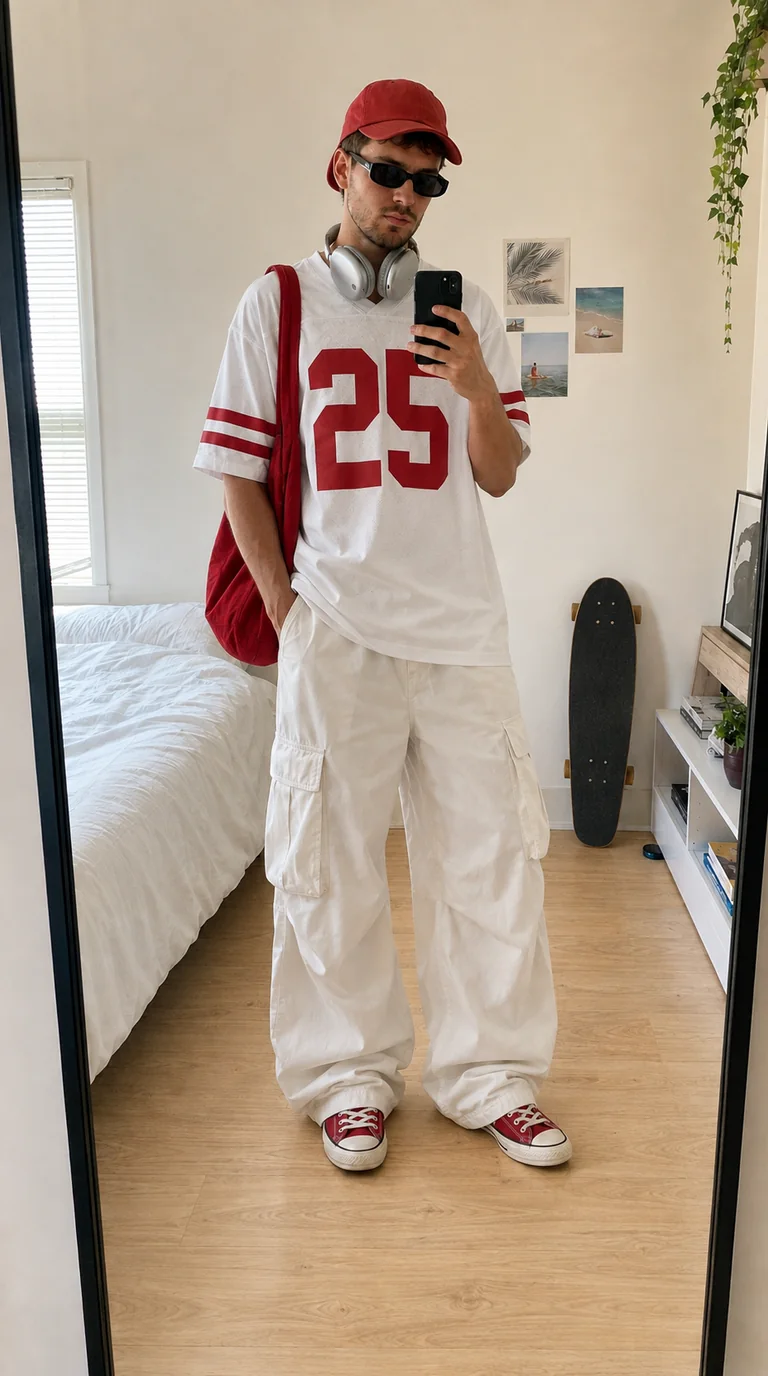
Virtual try on combines a person photo with a clothing reference and returns a picture of that outfit on you. Use it to judge color, layering, and overall style before you buy, pack, or try another piece. On a result like Red league, check whether the cap, the 25 on the jersey, the sleeve stripes, the cargo pockets, and the red bag still read clearly.
Virtual try on helps you compare appearance; it does not measure your body or guarantee fit. Check the retailer's size chart when choosing a size. The images here are AI examples.
YOUR NEXT LOOK, IN THREE STEPS
Set up your virtual try on in the fitting room above, with no prompt to write. Add your photos, choose the output, then sign in and submit when you are ready.
For virtual try on, upload a well-lit, front-facing photo of one person or choose one of the six sample models. Include the full body when trying a complete outfit or shoes.
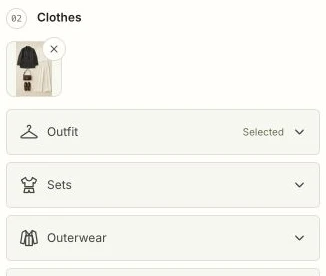
Load a complete Outfit, mix compatible pieces, or upload your own clothing photos. Selected items sit above the Clothes categories so you can see what the virtual try on will use.
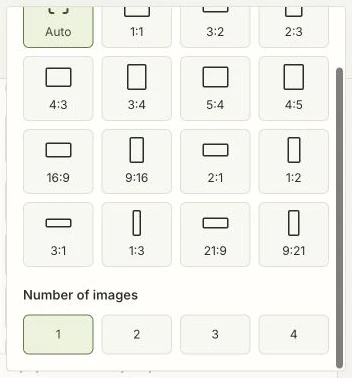
Keep Auto or pick a frame, then choose 1–4 candidate pictures of this same setup. Review the credit cost in the fitting room, sign in, and submit. Compare each virtual try on preview with your original photo and download a favorite.
Face the camera, use even light, and keep one person in frame. Show a readable full body when you try shoes or a complete outfit.
Show one item clearly, or a clean outfit flat lay with every piece visible. Crop away site text and extra products, and keep the full garment in the frame so virtual try on can see the complete piece.
BEFORE YOU CHOOSE
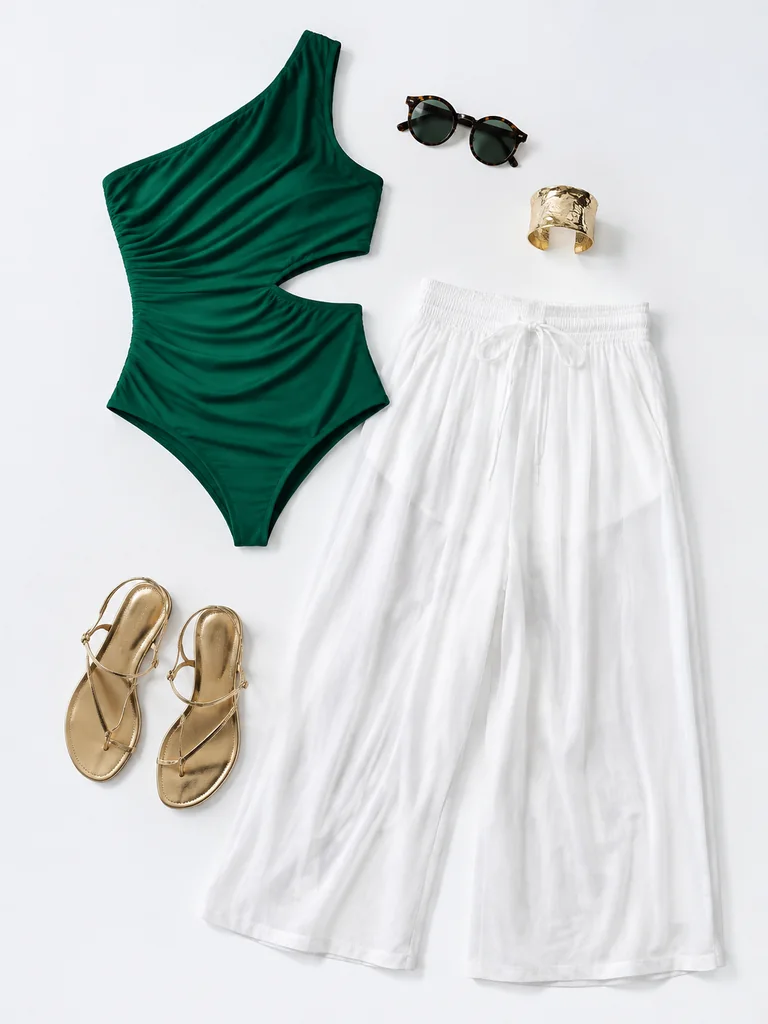
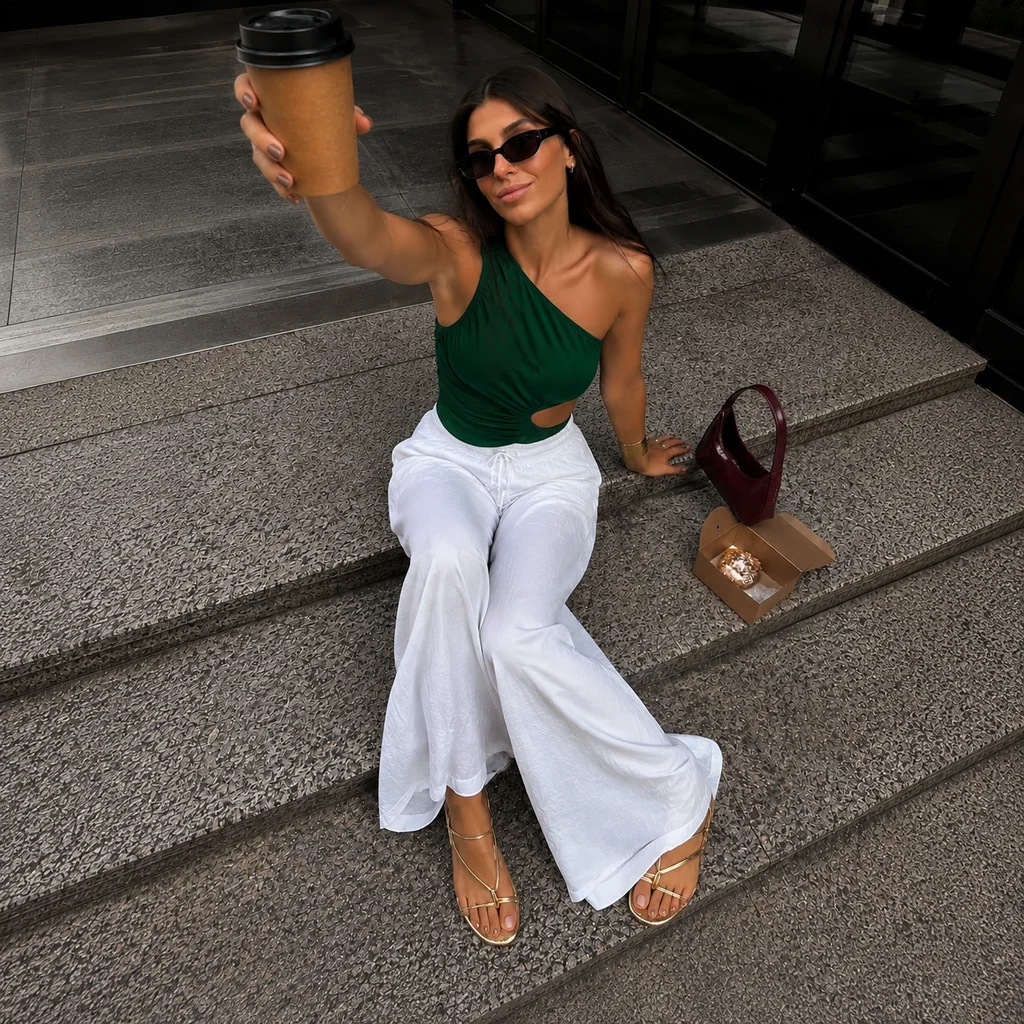
A product photo shows the clothes. It does not show how those colors and proportions sit on you. Load a complete reference and run a virtual try on with your photo, then decide whether to keep the look, swap a piece, or try a different outfit. On Coffee in the city, compare the green one-shoulder cutout with the white wide-leg trousers — the neckline, the side opening, the drawstring, and where the gold sandals land.
Preview it in the fitting room
WHEN YOU WOULD USE IT
Choose a scene for an evening outfit, weekend linen, or a new take on tailoring. Selecting Try this look loads that gallery outfit, keeps your person photo, and asks before replacing conflicting clothes. It does not generate until you submit.
AFTER HOURS
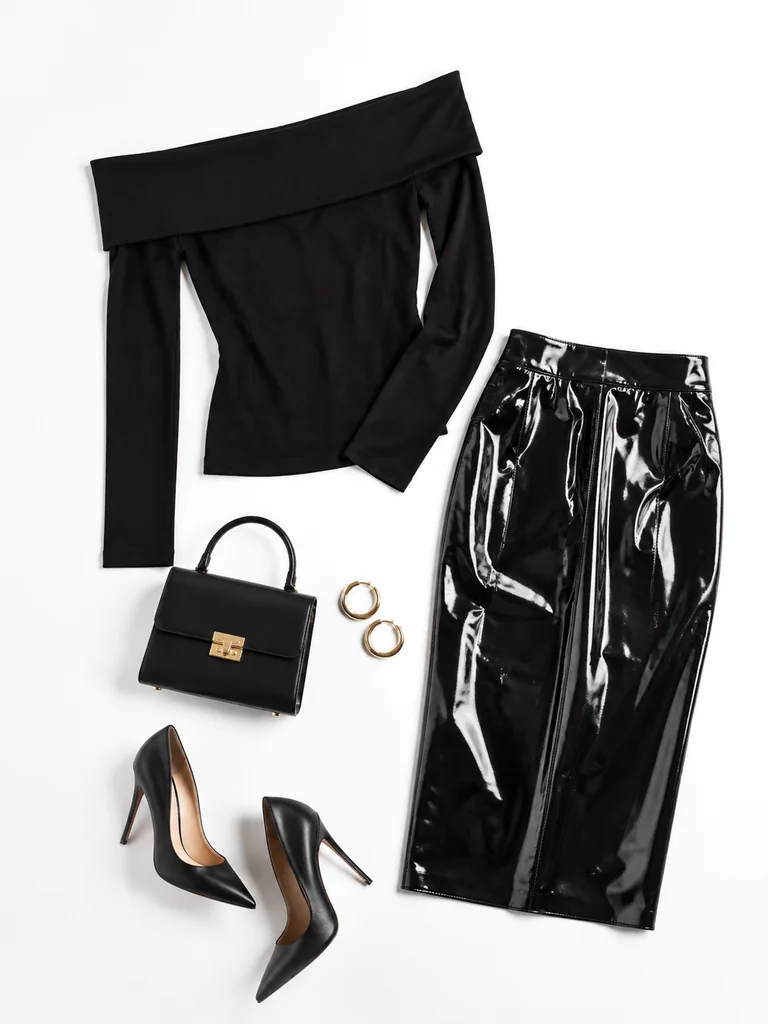
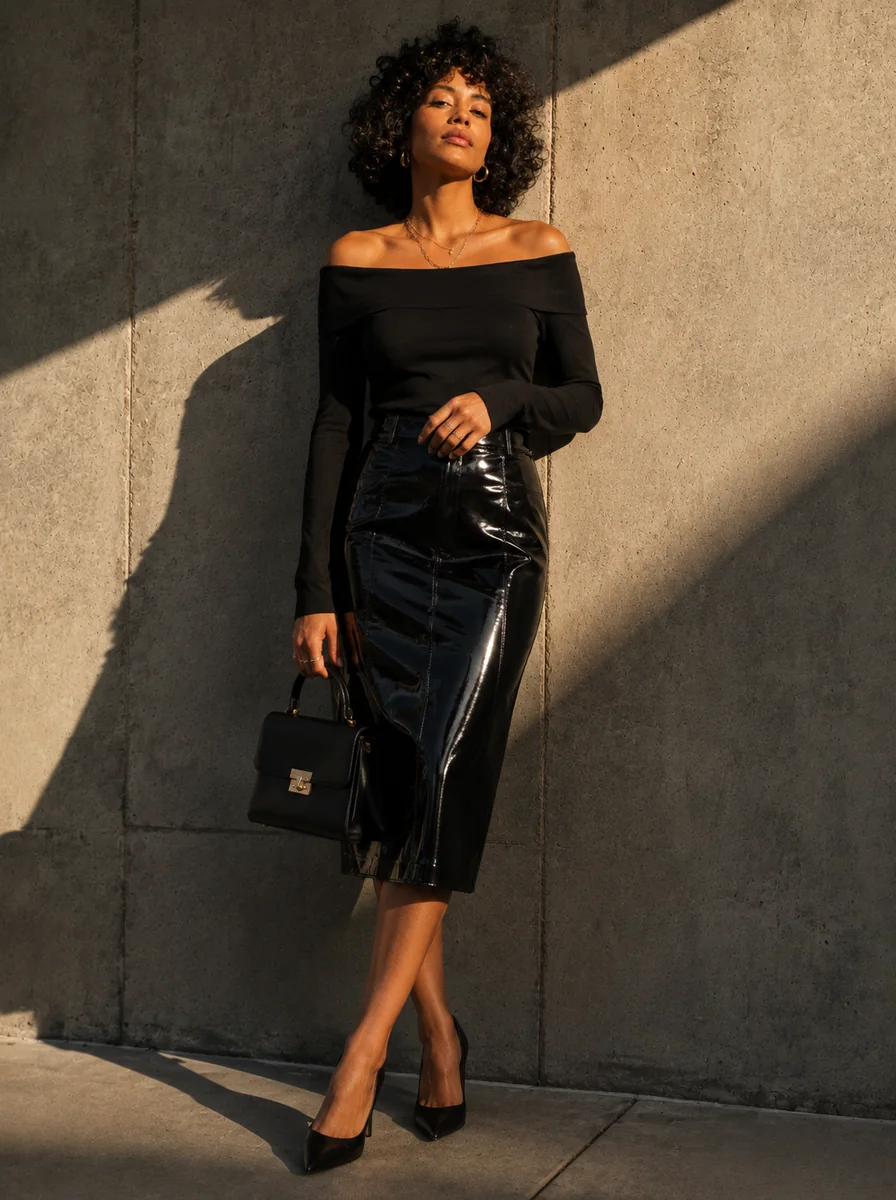
An off-shoulder top and a glossy midi skirt bring two textures to an all-black look. Check whether the open neckline, the skirt's shine, the pointed heels, and the bag feel like evening on your photo.
COMPLETE LOOK OR PIECES
Choose Outfit when one photo already shows the full look you want for virtual try on. Selecting it replaces separate pieces after you confirm; cancel keeps the current clothes. To build your own, combine Tops and Bottoms, add Outerwear, then finish with Socks, Shoes, or Accessories. Each piece has its own reference, so you can swap one item without rebuilding the rest.
Use Sets for a coordinated set or a dress in virtual try on. Sets replace Tops and Bottoms, and can still take Outerwear, Socks, Shoes, and Accessories.
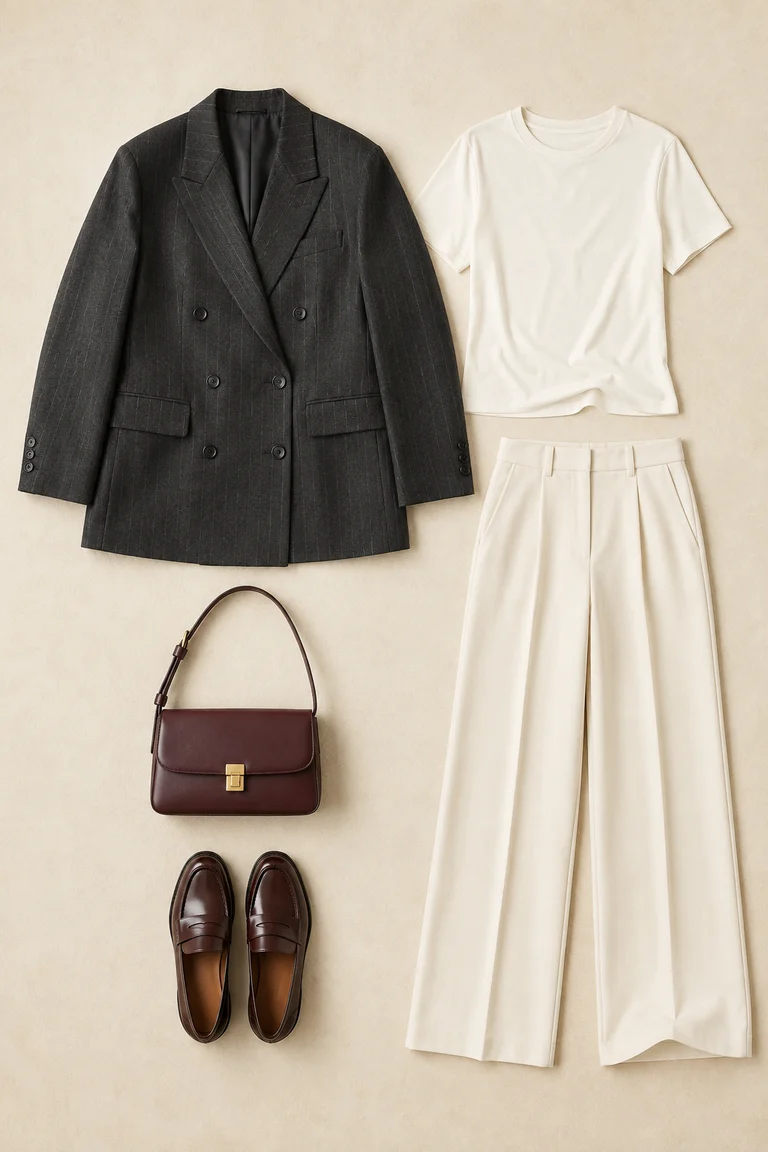
COMPATIBLE PIECES
 Blue poplin shirt
 Wide-leg denim
 The everyday blazer
 Oxblood loafers
 Olive shoulder bag
SAME PERSON, NEW CLOTHES
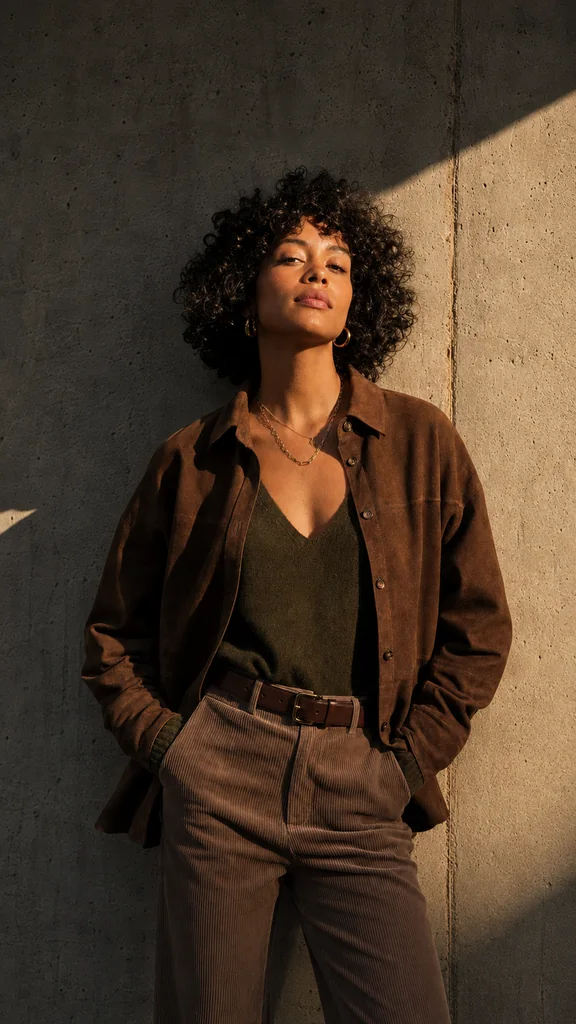
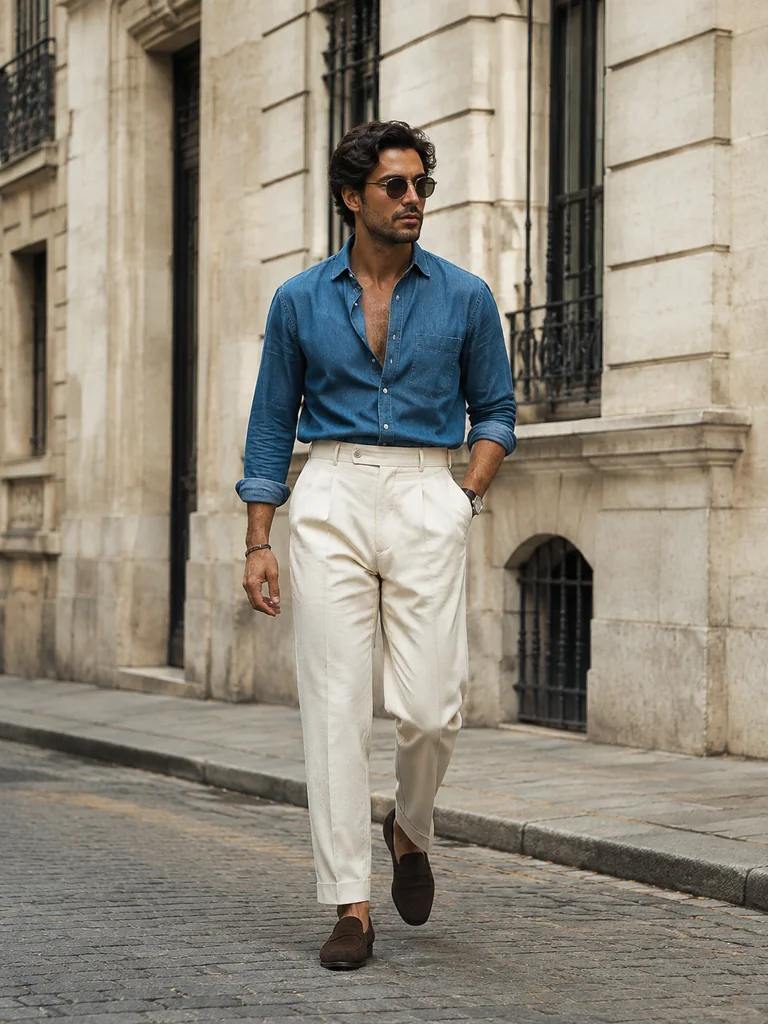
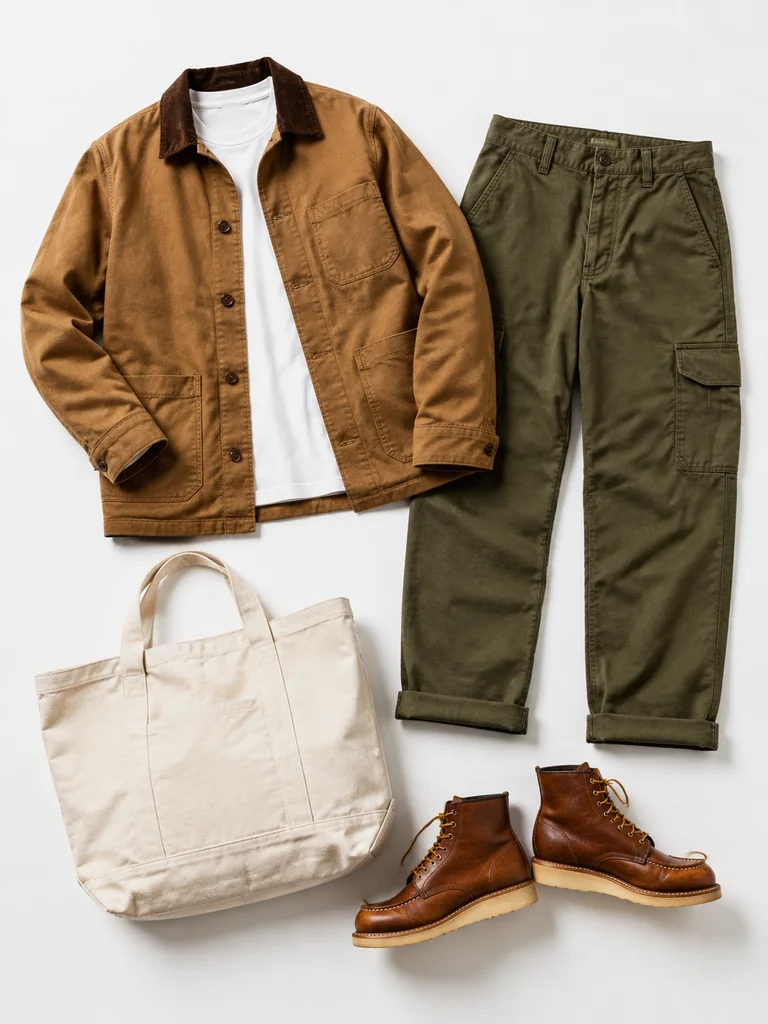
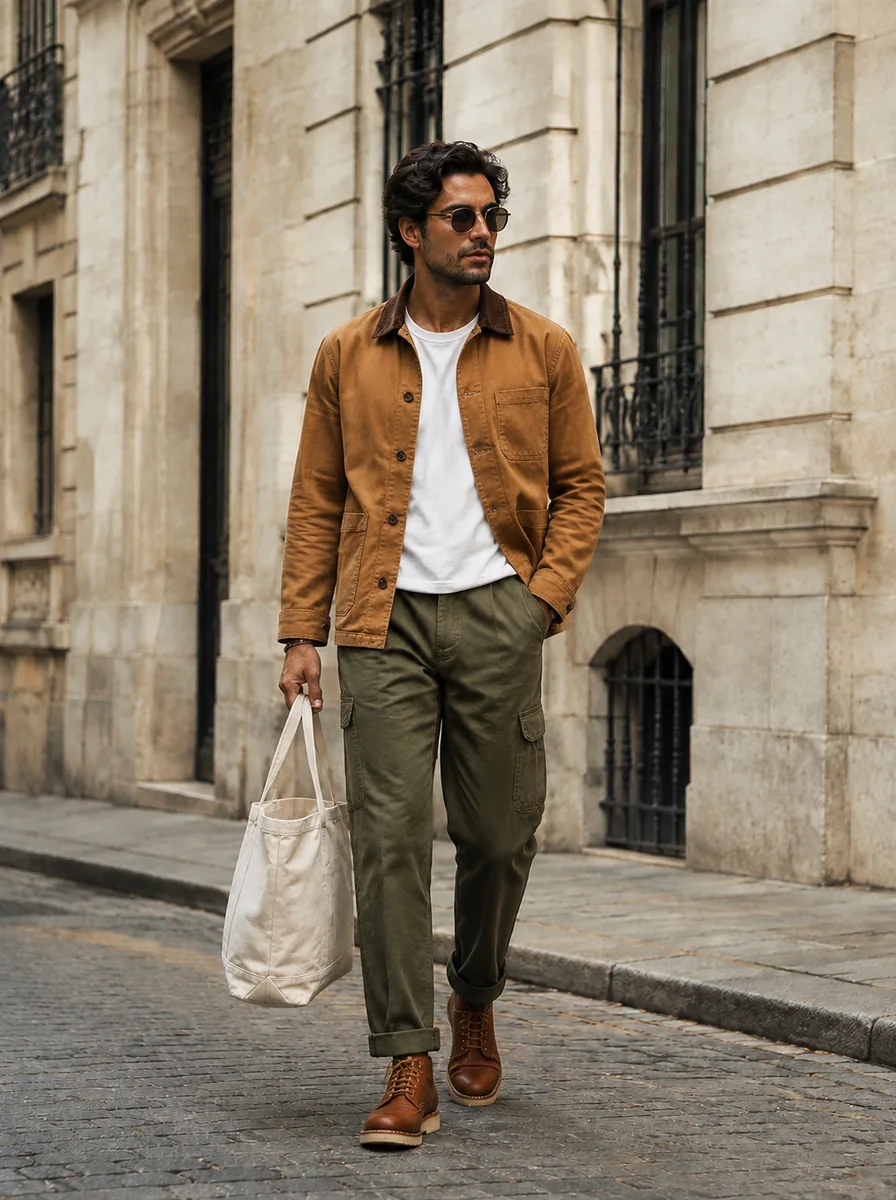
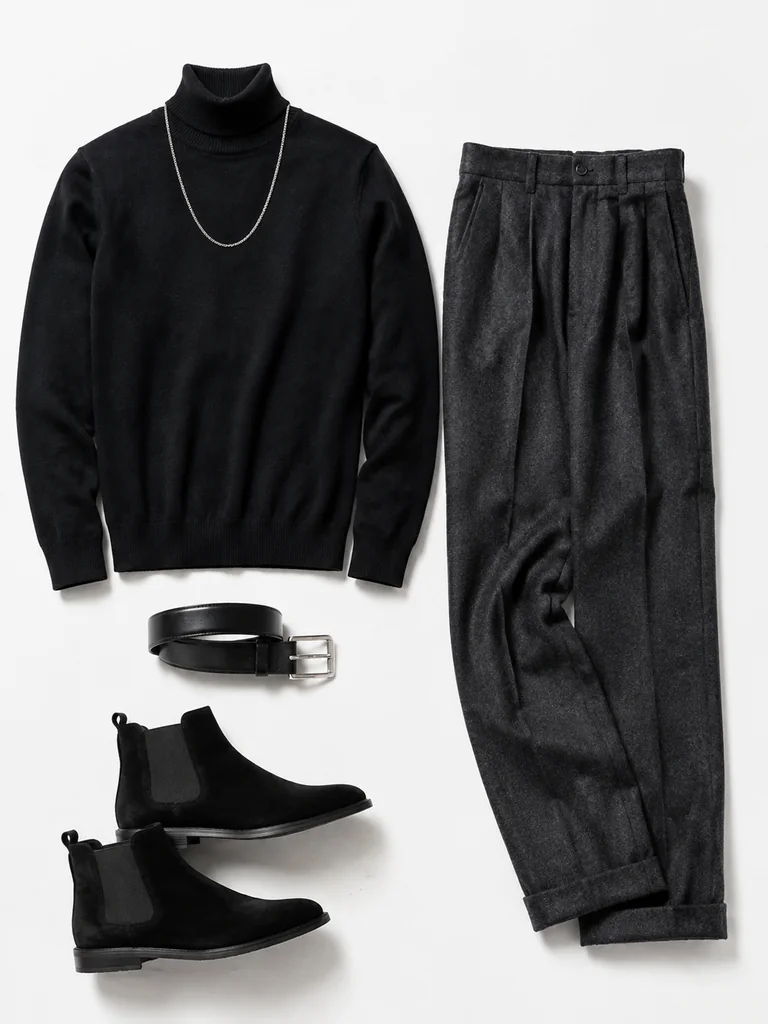
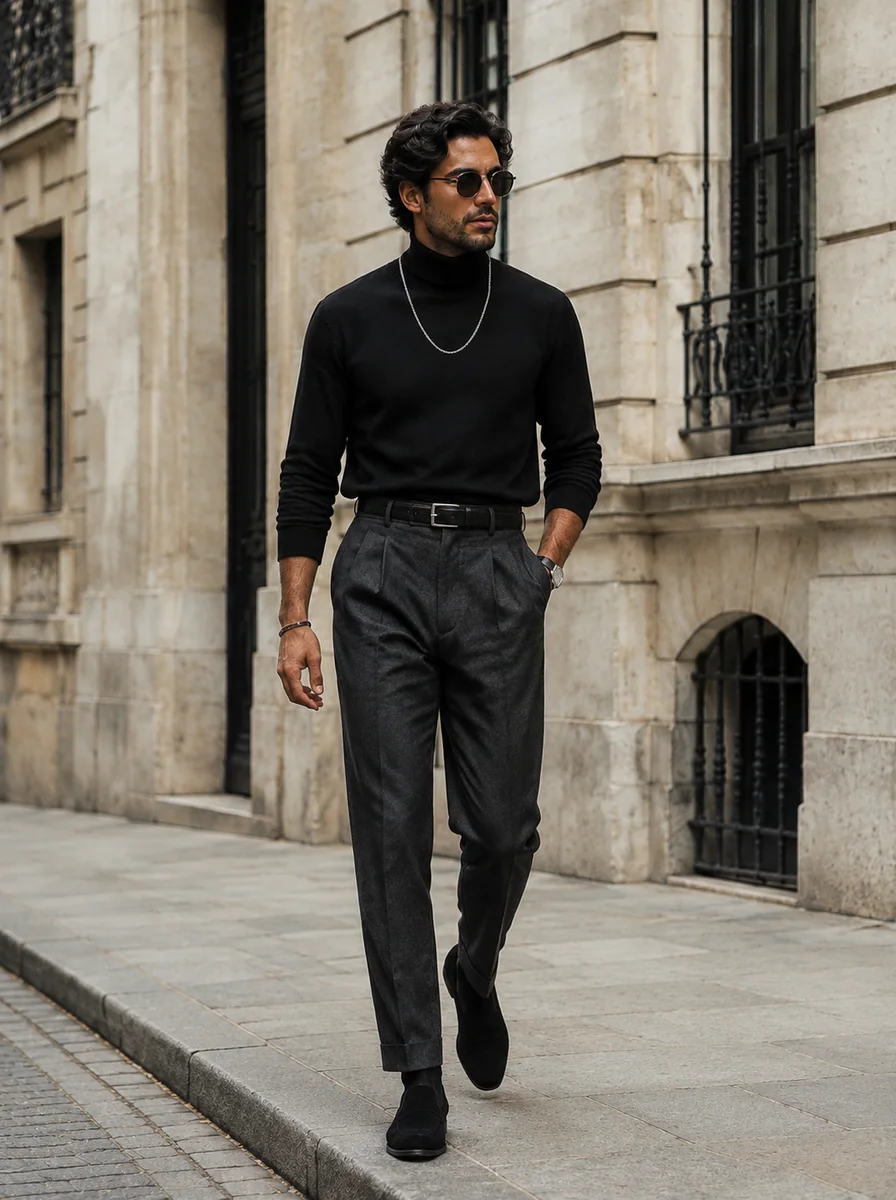
Weekend workwear and Midnight knit start from the same person photo. Keep that photo in the fitting room, then load a new outfit or swap a piece. Using the same starting image for each virtual try on makes the clothes easier to compare: the tan chore jacket and olive cargos, or the black turtleneck and Chelsea boots.
AI may still change facial, body, or background details. Compare each virtual try on preview with your original before saving.
BACKGROUND, POSE, FRAME, COUNT
Keep the original background and pose, or pick a studio, street, or café preset and a pose. Leave the frame on Auto, or choose a ratio such as 3:4 or 16:9. Choose 1–4 images to compare variations of one outfit in virtual try on. All candidates use the same person, clothing, and settings. To explore a different outfit, update the clothes and submit again.
Review the credit cost shown for this virtual try on in the fitting room. Sign in and submit when you want to generate.
 Studio
 Street
 Café
CaféUse a well-lit, front-facing photo of one person. Keep the body visible for complete outfits and shoes. Clothing photos should show one item or a clean outfit flat lay, true color, and the full silhouette. Crop away website text and extra products while keeping the complete garment. Group shots, heavy filters, and collages make a weak start for virtual try on.
Virtual try on offers eight categories: Outfit, Sets, Outerwear, Tops, Bottoms, Socks, Shoes, and Accessories. Use Outfit for one complete reference, or combine individual pieces. Sets cover coordinated clothing and dresses; they can pair with Outerwear, Socks, Shoes, and Accessories. Choosing Outfit replaces separate pieces, and choosing Sets replaces Tops and Bottoms. You can confirm or cancel before conflicting items are replaced.
Load another Outfit or replace a piece. Your current person photo stays. Outfit and Sets may ask you to confirm before they replace conflicting items. Background and pose stay unless you change them. Clicking a gallery scene or Try this look only loads references. A virtual try on does not start until you sign in and submit.
They are candidate previews from the same person, clothing, background, pose, and aspect ratio. Choose more than one to compare variations of that look. To explore a different outfit, change the clothing and start another virtual try on. The fitting room shows the credit cost before you generate.
You can browse the page and prepare your photos without signing in. Generating a virtual try on requires an account. New accounts receive starter credits under the current offer. Review the cost for your settings in the fitting room; paid plans and credit packs are listed on the pricing page. Loading a sample only prepares your inputs. If it fails, your current photos stay in place and no credits are used; retry or choose another look.
Virtual try on is an appearance preview. It does not measure your body or the garment, and it does not guarantee fit, drape, or a retail size. Prints, seams, logos, collars, and proportions may change. Check the retailer’s size chart before you buy. If a preview looks off, check that both references are clear and complete, then submit again with a clearer reference.
Each virtual try on starts from your selected person photo. Keep the original background and pose, or choose presets to change the setting. The model may still alter facial features, body proportions, clothing, or background details. Compare the result with your original photo before you save it.
Uploads and previews stay private to your account. We use them to create the requested virtual try on, show you private results, and operate safety, billing, and abuse controls. We do not sell your photos or publish them as public examples. Account content is kept while your account remains active and as needed for billing, security, and legal obligations. Upstream model providers may keep processing copies under their own policies, so deleting our copy does not guarantee immediate deletion upstream. Only upload photos you have the right to use.
Read the privacy policyYOUR PHOTO. YOUR NEXT OUTFIT.
Upload a person photo, choose an Outfit or mix pieces, then generate a virtual try on preview. The fitting room shows the current credit cost; sign in when you are ready to submit.
See pricing